Drop an image here
or click to choose
JPG, PNG, WebP — colors will smear into a gradient
About the Gradientor Effect
Last updated 21 August 2026
How the effect works
A gradient built from a photograph looks different from one built from swatches, because the colours in a photograph are already related. Daylight, a single light source and the physics of reflection mean the hues in a real scene sit in a narrow, coherent range. Picking five colours by hand rarely produces that; blurring a photograph produces it for free.
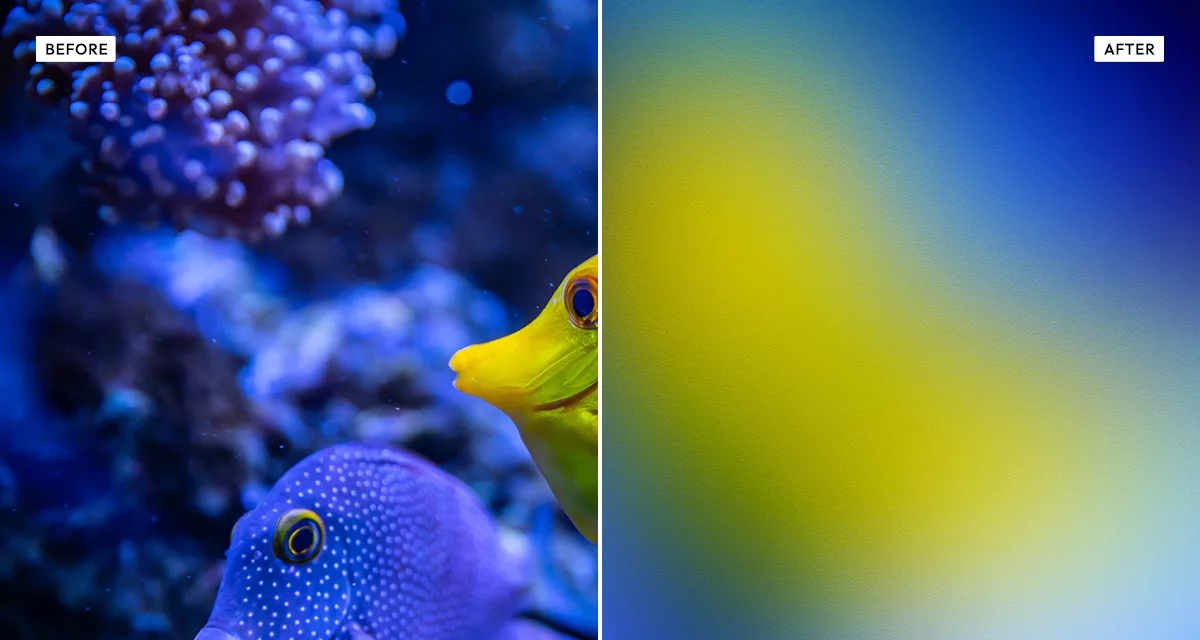
Gradientor works by progressively abstracting the image: it reduces the picture to a small number of colour regions, then blurs the boundaries between them until the detail is gone and only the colour relationship remains. Abstraction sets how few regions survive — low values keep a recognisable ghost of the composition, high values reduce it to broad fields.
The final grain pass matters more than it looks. Smooth gradients on ordinary 8-bit screens produce visible banding, particularly in dark blues and purples. A little noise dithers those bands away, which is why the grain default is 25 rather than zero.
What each control does
| Control | Range | Default | What it changes |
|---|---|---|---|
| Abstraction | 2–80 | 10 | How few colour regions survive. Low keeps a ghost of the composition; high gives broad flat fields. |
| Blur | 0–100 | 35 | Softness of the boundaries between regions. This is what turns regions into a gradient. |
| Saturation | −100 to +150 | 25 | Colour intensity. Positive by default, since blurring tends to mute a photograph. |
| Brightness | −100 to +100 | 30 | Raised by default: gradients used as backgrounds usually want to sit lighter than the source. |
| Contrast | −100 to +100 | 40 | Separation between the light and dark areas of the wash. |
| Grain | 0–100 | 25 | Noise over the surface. Its real job is hiding the banding smooth gradients show on 8-bit screens. |
| Grain size | 0–100 | 2 | Particle size. Keep it low, 1–4, for fine dither rather than visible texture. |
Tips
- Photos with two or three strong colours abstract best. A busy scene with every hue in it averages out to grey-brown.
- Sunsets, foliage, water and painted walls are reliable sources. Portraits rarely are — skin plus background usually averages to beige.
- Keep grain above about 15. Without it, gradients band visibly on ordinary displays, especially in dark blues.
- For a background behind text, lower contrast and raise brightness. A calm wash reads far better under type than a vivid one.
Common uses
Website and app backgrounds, presentation slides, social post backdrops, album and podcast artwork, phone and desktop wallpapers, and brand colour exploration from a photograph you already like.
Frequently asked questions
What is the Gradientor effect?
Gradientor turns a photograph into a smooth colour gradient. It reduces the image to a small number of colour regions and blurs the boundaries between them, so the detail disappears but the colour relationship of the original scene remains as an abstract wash.
How do I make a blurred colour background from a photo?
Reduce the image to a few colour regions, then blur the boundaries until only the colour relationship remains. Abstraction controls how many regions survive: low keeps a ghost of the composition, high gives broad flat fields. Photos with two or three dominant colours work best.
How do I get a colour palette from a photo?
Abstract it heavily and the dominant colours separate into readable fields you can sample. The colours in a photograph are already related — a single light source and the physics of reflection keep them in a narrow range — which is why a palette pulled from an image usually looks more coherent than one picked by hand.
Is the Gradientor effect free to use?
Yes. The Gradientor effect is free, and you can adjust every setting and preview the result without signing up. Credits are only needed to download at full original resolution; the preview and standard-resolution download cost nothing.
Do I need to upload my photo?
No. The Gradientor effect runs entirely in your browser, so your original photo is processed on your own device and never leaves it. If you are signed in and save a full-resolution download, the rendered result — not your original — is stored in your private account folder, encrypted with AES-256, and deleted automatically after 30 days.
What is the difference between Gradientor and the mesh gradient generator?
Gradientor derives a gradient from a photograph you provide, so the colours come from a real scene. The mesh gradient generator creates one from nothing, using a palette you pick. Use Gradientor when you want a background that matches an existing image, and the generator when you are starting from scratch.
Which photos make the best gradients?
Images with two or three dominant colours work best — sunsets, foliage, water, a painted wall. Busy scenes containing every hue average out to a muddy grey-brown, and portraits usually average to beige because skin and background blend together.
Can I use Gradientor images on client or commercial work?
Yes. Images you create with the Gradientor effect can be used for personal and commercial projects, including client work, packaging and merchandise. Full terms are on the licence page.
Related effects
To generate a gradient without a photo, use Mesh Gradients. Duotone maps an image onto two colours, Prismatic Light adds refraction and flare, and Motion Blur abstracts in a single direction instead.