Drop an image hereor click to chooseJPG, PNG, WebP
About the Motion Blur Effect
Last updated 21 August 2026
How the effect works
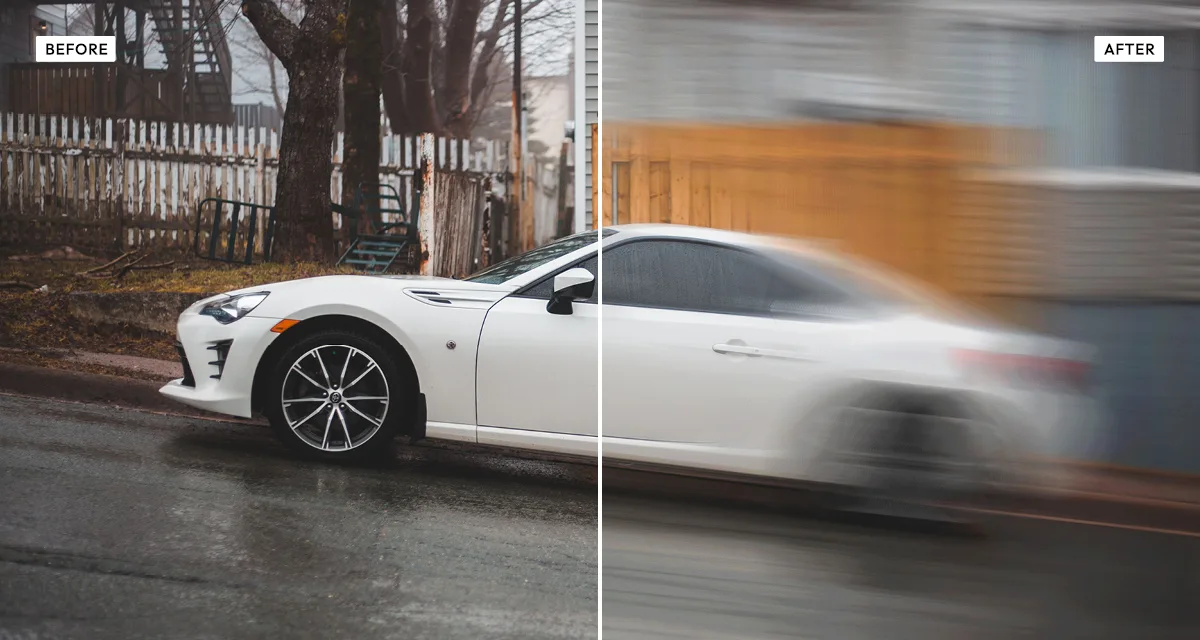
Blur in a photograph is information about time. A short exposure freezes a moment; a long one records everything that happened during it, smeared along the path each thing travelled. The eye reads that smear as speed without being told, which is why a panned photograph of a cyclist feels fast and a frozen one does not.
Two distinct techniques produce it. Panning means moving the camera with the subject during a slow exposure, so the subject stays sharp while the background streaks. A long exposure from a fixed camera does the reverse: the background is sharp and anything moving becomes a streak.
The focus and focus radius controls are what let you choose. With focus at zero the whole frame blurs, which reads as long exposure or camera shake. Raise it and a protected sharp area appears at the centre, which reads as panning — the subject tracked, the world moving past. The angle should follow the real direction of travel in the photograph.
What each control does
| Control | Range | Default | What it changes |
|---|---|---|---|
| Angle | 0–360° | 0 | Direction of the streak. Match it to the real direction of movement in the photo. |
| Distance | 0–100 | 35 | Length of the streak. Above 60 the subject stops being recognisable. |
| Focus | 0–100 | 0 | Protects a sharp area at the centre. Zero blurs everything; raising it imitates panning. |
| Focus radius | 10–80 | 35 | Size of the protected area. Match it roughly to your subject. |
| Brightness | −100 to +100 | 0 | Overall exposure. Blurring averages pixels, which can darken an image slightly. |
| Contrast | −100 to +100 | 0 | Tonal separation, applied after the blur. |
| Grain | 0–100 | 12 | A little grain stops long blurs looking digitally smooth. |
Tips
- Set the angle to match the movement already implied in the photo. A horizontal streak on a falling object is the fastest way to look wrong.
- For a panning look, raise focus to 50–70 and set the radius to roughly your subject size. For long exposure, leave focus at 0.
- Keep distance under 60 unless you want pure abstraction — beyond that the subject dissolves.
- Blur averages pixels and slightly darkens the result, so a small brightness lift often restores the original feel.
Common uses
Sports and cycling photography, car and transport imagery, dance and performance shots, album and poster artwork, abstract backgrounds, and any still photograph that needs to imply speed.
Frequently asked questions
What is the motion blur effect?
The motion blur effect adds directional blur to a still photograph so it reads as movement. You set the direction and length of the streak, and can protect a sharp focus area, which reproduces either a panned shot or a long exposure from a fixed camera.
How do I fake a panning shot?
Raise the focus control to around 50 to 70 and set the focus radius roughly to your subject size, so the subject stays sharp while everything around it streaks. That contrast between sharp and blurred is what the eye reads as speed. Match the blur angle to the real direction of travel.
How do I blur the background of a photo to show speed?
Set the angle along the direction of movement, raise distance to around 30 to 40, then protect the subject with the focus control. Keep distance under 60 unless you want pure abstraction — beyond that the subject dissolves. A small brightness lift afterwards restores what blurring averages away.
Is the motion blur effect free to use?
Yes. The motion blur effect is free, and you can adjust every setting and preview the result without signing up. Credits are only needed to download at full original resolution; the preview and standard-resolution download cost nothing.
Do I need to upload my photo?
No. The motion blur effect runs entirely in your browser, so your original photo is processed on your own device and never leaves it. If you are signed in and save a full-resolution download, the rendered result — not your original — is stored in your private account folder, encrypted with AES-256, and deleted automatically after 30 days.
What is the difference between panning and long exposure blur?
Panning means moving the camera with a moving subject, so the subject stays sharp and the background streaks. A long exposure from a fixed camera does the opposite: the background is sharp and moving things streak. Raise the focus control here for panning; leave it at zero for long exposure.
How do I make a photo look like it is moving?
Set the blur angle to match the direction of travel already implied in the picture, then raise the distance to around 30 to 40. If there is a clear subject, raise the focus control so it stays sharp while everything around it streaks — that contrast between sharp and blurred is what the eye reads as speed.
Can I use the motion blur effect on client or commercial work?
Yes. Images you create with the motion blur effect can be used for personal and commercial projects, including client work, packaging and merchandise. Full terms are on the licence page.
Related effects
For light streaks rather than movement, see Prismatic Light. Gradientor blurs a photo all the way into abstraction, Grainy Film Poster adds urgency through grain, and Reeded Glass distorts through ribbed glass instead.