Our image resizer tool lets you crop images, resize them to exact pixel dimensions, compress file sizes, and convert them to WebP, JPG, or PNG. All in one tool, one image at a time, or multiple images in batch mode. Optimize your images for faster website loading and improved page speed. Everything runs securely in your browser, so your photos are never uploaded to a server.
One tool, four jobs
Crop, resize, compress and convert in a single pass — no exporting from one
tool and re-importing into the next, and no quality lost along the way.
JPG to WebP in one step
WebP is 25–35% smaller than JPG at the same quality and works in every
current browser, which makes it the best format for web uploads and page speed.
Drop an image here or click to browse
JPG, PNG, or WebP
Original: —
Output: —
Saving: —
Crop
Selection: —
Dimensions (px)
×
Compression
Quality85%
Drop images here or click to browse
Select many at once · JPG, PNG, or WebP · same settings applied to all
0 images
Resize (fit within)
×
Each image keeps its aspect ratio and scales to fit the box.
Compression
Quality85%
100% private · processed locally · nothing leaves your device
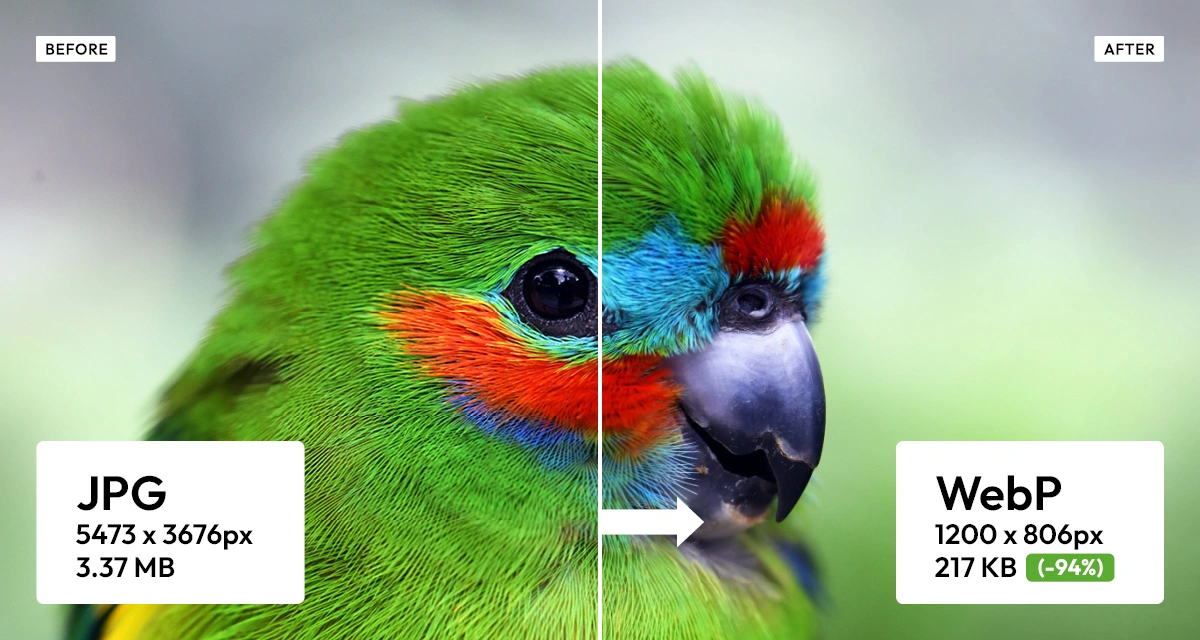
A 3.37 MB JPG reduced to 217 KB — 94% smaller — by resizing to 1200px and converting to WebP. Same photograph, with barely any visible difference at normal viewing size.
About the Image Resizer
Last updated 21 August 2026
Why image size and format matter
Photographs are almost always far larger than the page they end up on needs. A phone camera produces something around 4000 pixels wide at three to eight megabytes; a full-width image on a website rarely needs more than 1920 pixels and should weigh under 200 kilobytes. Serving the original means every visitor downloads twenty to fifty times more data than they can actually see — which is the single most common cause of a slow website.
Two separate things reduce that. Resizing throws away pixels you do not need: half the width and half the height is a quarter of the data before any compression. Compression then decides how much detail to discard within the pixels that remain, which is what the quality slider controls. Doing both is what turns eight megabytes into a hundred kilobytes with no visible difference at normal viewing size.
Format matters as much as either. WebP is typically 25 to 35 percent smaller than JPEG at the same visual quality, is supported by every current browser, and — unlike JPEG — carries an alpha channel, so a logo or cut-out keeps its transparent background. That combination makes it the default choice for the web. JPEG and PNG remain useful where a file has to open in older software that predates WebP. PNG is additionally worth it when you need pixel-exact lossless output — a screenshot full of small text, say — but on a photograph it is often five times larger than WebP for no visible gain.
How to use the Velvetmade compressor tool?
Simply drop in your photo, crop and resize it, adjust the compression settings, then export your optimized image in the format you need. The whole process takes under a minute and happens on your own device. Work through the steps in order — cropping after resizing means setting the dimensions twice, because a crop changes the aspect ratio.
Step 1 — Drop your photo Drag a JPG, PNG or WebP onto the page, or click to browse. The file opens directly in the browser; nothing is sent anywhere. You will immediately see the original dimensions and file size.
Step 2 — Crop (optional) Press Crop and drag a selection, with rule-of-thirds guides to help you place it. Choose a fixed ratio — 1:1, 4:3, 3:4, 16:9, 3:2 or the original — if the result has to fit a specific slot, then apply.
Step 3 — Resize Type the width or height you need, or use a preset: 1920 for a full-width web image, 1280 for in-article, 1080 for square social posts, 800 for thumbnails. Leave the ratio locked and the second dimension follows automatically.
Step 4 — Compress Drag the quality slider and watch the output size and saving percentage update live. Around 80 to 85 is the usual sweet spot; below 60 compression artefacts start to show, especially in skies and skin.
Step 5 — Convert and download Pick WebP for anything going on the web — it is the smallest and, unlike JPG, it keeps transparency, so a cut-out with no background stays cut out. Choose JPG or PNG when the file has to open in older software. Then download: it saves straight to your device, free and with no account.
To process a folder of images at once, switch to batch mode at the top of the tool. Drop in as many files as you like, set one target size, format and quality for all of them, and the results download together as a single ZIP.
What each control does
Image resizer controls and what each is for
Control
Range
Default
What it changes
Crop
freeform or fixed ratio
off
Drag a selection with rule-of-thirds guides. Ratios include 1:1, 4:5, 16:9 and the original.
Width / Height
any pixel value
original
Target dimensions. Lock aspect ratio keeps the proportions while you type one value.
Lock ratio
on / off
on
Off lets you set width and height independently, which stretches the image.
Presets
1920 · 1280 · 1080 · 800
—
One-click sizes: 1920 for full-width web, 1280 for in-article, 1080 square for social.
Format
JPEG · WebP · PNG
JPEG
WebP for the web — smallest, and it supports transparency. JPEG and PNG for maximum compatibility with older software; PNG also when you need pixel-exact lossless.
Quality
10–100
85
Compression level for JPEG and WebP. 80–85 is the usual sweet spot; below 60 shows artefacts.
Batch mode
many files
—
Apply one size, format and quality to a whole folder of images and download them as a ZIP.
Do not upscale
on / off
on
Batch only. Leaves images already smaller than the target untouched rather than enlarging them.
Tips
For most website images: resize to 1920 px wide, format WebP, quality 82. That combination reliably lands under 200 KB.
Crop before resizing. Cropping changes the aspect ratio, so doing it afterwards means setting dimensions twice.
Watch the saving indicator rather than the quality number. Dropping from 85 to 75 often saves 30 percent with no visible change; going below 60 rarely does.
You do not need PNG for a transparent background — WebP supports transparency too, at a fraction of the size. Reach for PNG when you need pixel-exact lossless output, such as a screenshot full of small text.
In batch mode leave do not upscale on, otherwise small images get enlarged and look soft.
Common uses
Preparing photographs for a website or online shop, shrinking images before uploading to a CMS, meeting file-size limits on forms and job applications, making social media images at the right ratio, compressing screenshots for documentation, and converting a folder of JPEGs to WebP before a site launch.
Frequently asked questions
How do I resize an image online for free?
Drop your photo onto the Velvetmade image resizer, type the width or height you want, then download. There is no signup, no watermark and no limit on resolution. You can also crop it, compress it to a smaller file size, and convert it to WebP, JPG or PNG in the same pass.
Is the Velvetmade image resizer free to use?
Yes, completely. Unlike the photo effects on velvetmade.app, which spend one credit per full-resolution download, the image resizer has no credit system at all: cropping, resizing, compressing, converting, batch processing and downloading are free at any resolution, with no account, no watermark and no daily limit on how many images you process.
Are my images uploaded to a server?
No. The Velvetmade image resizer works entirely in your browser using HTML5 canvas, so your files never leave your device — not the originals and not the results. Nothing is transmitted, stored or seen by anyone else, which makes it safe for client work, ID documents and private photographs.
Why use WebP images instead of JPG?
WebP files are typically 25 to 35 percent smaller than JPG at the same visual quality, which makes pages load faster and improves your Core Web Vitals scores. WebP also supports transparency, which JPG cannot do at all, so it replaces both JPG and PNG in most web work. Every current browser has supported WebP since 2020 — Chrome, Safari, Firefox and Edge — so keep JPG only when a file must open in older software.
How do I reduce image file size without losing quality?
Resize first, then compress. Reducing a 4000-pixel photo to the 1200 or 1920 pixels a web page actually displays removes data you could never have seen, which costs nothing visually. Then set quality to around 80 to 85 and convert to WebP. Together those steps routinely take a 3 MB photo under 200 KB with no difference visible at normal viewing size.
What size should images be for a website?
As a rule: full-width banners no more than 1920 pixels wide and under 200 KB, in-article images 1200 pixels and under 150 KB, product photos 1500 pixels and under 150 KB, and thumbnails 600 pixels and under 60 KB. Hitting those numbers usually improves page speed more than any other single change.
How do I make images load faster on my website?
Images are almost always the largest thing on a web page, so they are where speed is won or lost. Do three things: resize each image to the size it is actually displayed at rather than uploading the camera original, convert it to WebP, and compress it to around quality 82. That routinely turns a 3 MB photo into under 200 KB, which shows up directly in your Largest Contentful Paint score and in how fast the page feels on a phone.
Which image formats are most commonly used, and when should I use each?
Three formats cover almost everything on the web. WebP is the modern default: 25 to 35 percent smaller than JPG at the same quality, supports transparency, and works in every current browser — use it for anything going online. JPG is the universal photo format, understood by every device and program ever made, but it cannot store transparency — use it when compatibility matters more than file size. PNG is lossless and much larger, so it is worth it for screenshots full of small text, flat graphics, and anywhere an image must survive repeated re-saving without degrading.
Does WebP support transparent backgrounds?
Yes. WebP carries a full alpha channel, exactly as PNG does, so a logo or cut-out image keeps its transparent background when you convert it. It usually does so at a fraction of the size — a transparent PNG logo converted to WebP is commonly 60 to 80 percent smaller. Only JPG cannot store transparency; it fills any transparent area with solid white.
How do I resize multiple images at once?
Switch to batch mode at the top of the Velvetmade image resizer and drop in as many images as you like — a folder of 50 photos is no problem. Set one target size, format and quality for all of them and they process together in your browser, then download as a single ZIP. Leaving "do not upscale" enabled keeps images already smaller than your target at their original size instead of enlarging them.
Does resizing an image reduce its quality?
Making an image smaller discards pixels, but the loss is invisible as long as the result is still larger than the space it is displayed in — a 1200-pixel image shown in an 800-pixel column looks identical to the 4000-pixel original. Enlarging is what causes visible damage, because the missing detail has to be invented, so never upscale a photograph you intend to publish.
What to do next
Once your image is the right size, try an effect on it: Polaroid for instant-film colour, Vintage for analog texture, or Dramatic Black and White for monochrome. Mesh Gradients generates backgrounds from scratch.